
The Online Piano Teacher's Tech Stack (2026)
Build an online piano teacher setup students can hear, see, book, and use between lessons, without turning your studio into a broadcast rig.
Pract.is Editorial
Research-based practice guidance for musicians from the Pract.is editorial team.

Online piano teaching fails in the gaps between otherwise good tools. A camera can look sharp while hiding the wrists; a video platform can make speech pristine while erasing half the piano; a strong lesson can still collapse into three vague notes in a chat. The useful 2026 stack is the smallest chain that lets a student see, hear, book, pay, and know what to do next.
The minimum setup is smaller than the internet suggests
A teacher can run a serious first online lesson with a laptop or tablet, its built-in microphone, a stable side view of the keyboard, headphones, and the desktop version of a video-call app. The instrument and the teaching still do the real work. Before adding gear, call a friend from the room and device that will actually be used, play quietly and loudly, speak at normal lesson volume, and ask what disappears. That test reveals more than a shopping cart.
PianoTechSupport is a useful practitioner model: weekly lessons run over Zoom, technical problems are diagnosed at the root, and the session ends in a clear plan for the week. None of that requires a broadcast studio. It requires a reliable view, honest sound, and a handoff the student can still understand on Thursday.
The student's setup should be simpler still. One side-on device that shows the player, both hands, and enough of the keyboard is normally better than asking every family to build a multi-camera rig. Our post on what happens in a first online piano lesson covers the student-facing preparation; the teacher's job is to make that modest setup sufficient.
The buying order below keeps the stack tied to teaching problems. Start with what already works, spend first on stability, and treat production tools as optional.
Keep
The device you ownLaptop or tablet, built-in mic, wired earbuds, and the student's score.
Add first
Stability and lightA firm mount, a power cable, a lamp, and Ethernet where practical.
Add only when proved
Extra capture toolsUSB mic, interface, second camera, scene switching, or MIDI display.
The online lesson circuit
Fix the audio profile before buying a microphone
Speech software is trained to make a voice clear. Sustained bass notes, pedal resonance, repeated attacks, and a quiet pianissimo can look like noise to the same processing. That is why an expensive microphone can still sound worse than a laptop mic when the call is using its default speech profile.
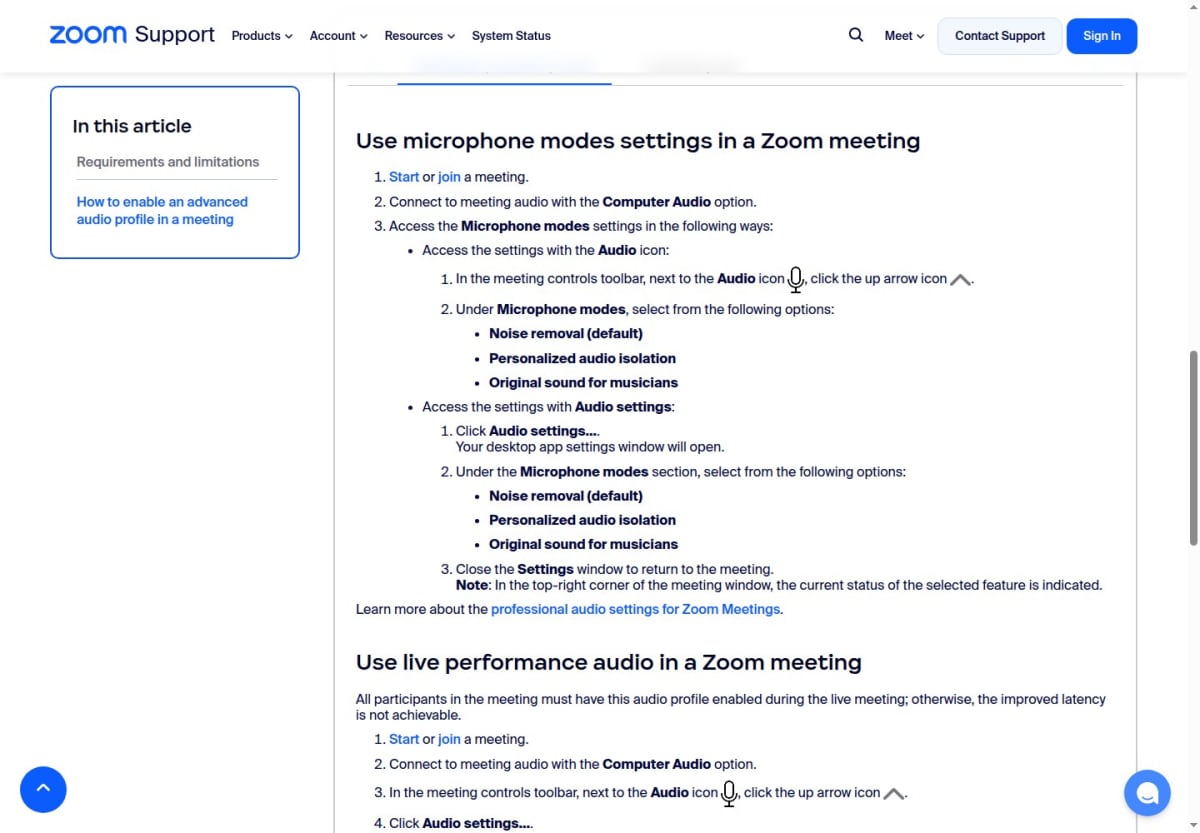
In the Zoom desktop app, open Audio settings and choose Original sound for musicians. Zoom's current musician-audio instructions explain that this preserves more of the microphone signal by bypassing its normal noise filtering. High-fidelity music, stereo, and Live performance audio are optional steps, not boxes to tick automatically. Live performance mode asks for a 48 kHz input, a four-core CPU, stronger network conditions, and the same mode at both ends; Ethernet is recommended.
On Google Meet, the equivalent first move is simpler: turn noise cancellation off. Google's own Meet guidance says its cancellation removes non-speech sounds and should be disabled when music needs to be heard. Microsoft Teams has a dedicated high-fidelity music mode, but Microsoft also recommends external audio devices and warns against Bluetooth for that mode. Zoom remains the most familiar music-teaching default, while Meet is a credible no-cost one-to-one fallback and Teams makes sense when a school already lives inside Microsoft 365.
Use the symptom rather than the brand name to diagnose the problem. The matrix below covers the failures that waste the most lesson time.
| What the teacher hears | Likely cause | First fix |
|---|---|---|
| Notes vanish after the attack | Speech noise suppression | Enable musician mode or disable cancellation |
| Voice is clear, piano is faint | Mic is too close to the face | Move the device until speech and piano balance |
| Loud chords crackle | Input clipping | Lower input gain or increase mic distance |
| Echo or a rising howl | Two open audio paths | Mute the second device and use headphones |
| Audio breaks up with video | Connection or CPU load | Use Ethernet, close apps, or reduce video quality |
Bandwidth still sets the ceiling. Zoom's published web-app requirements list about 1.2 Mbps each way for 720p one-to-one video and 3.8 Mbps up / 3.0 Mbps down for 1080p. Those are operating figures, not a promise that a congested Wi-Fi room will behave. Test at the same time of day as the lesson, leave capacity for music mode, and prefer a cable over buying a 4K camera for an unstable uplink.
Better piano audio usually begins with one software switch, not a more expensive microphone.
The camera should show teaching evidence, not a flattering portrait
A centered head-and-shoulders webcam is ideal for office meetings and weak for piano teaching. The primary view should sit to one side of the instrument, high enough to see the keyboard, both hands, forearms, elbows, and enough of the torso to read posture. A close overhead shot can show fingering, but it hides the wrist-arm relationship and often makes the student look down at a tiny picture instead of listening.
Start with one honest side view. Ask a student to copy a wrist release, a rotation, and a leap from it. If the movement is readable, the angle works. Add a second overhead or teacher-facing camera only when the side view repeatedly fails to show something the lesson needs.
The Incorporated Society of Musicians' setup guide demonstrates the low-friction version: a tablet carries the main view and audio, while a phone joins as the keyboard view with its meeting audio cancelled to prevent feedback. That second-device detail matters. Two cameras do not require two microphones.
Current phones also reduce the need for webcam software. Apple supports using an iPhone as a Mac webcam through Continuity Camera, wired or wireless. Android 14 QPR1 and later includes a USB webcam mode at the platform level, with device support varying by manufacturer; Google's Pixel instructions show the simple USB workflow. In both cases, a stable clamp and power cable contribute more to a lesson than cinematic background blur.
Light the hands and face from the front or front-side, and avoid a bright window behind the piano. Lock the stand so the image does not shake when someone plays fortissimo. Finally, tape a small mark on the floor or furniture once the angle is right. Rebuilding the camera position before every student is unnecessary friction.
Build one lesson desk for score, demonstration, and notes
The teacher's screen should answer three questions without hunting: What is the student playing? What needs to be shown? What was assigned last time? That can be a plain arrangement with the call on one half of the display and the score or student record on the other. A second monitor is convenient, but a consistent window layout matters more.
Keep each student's current scores in one shared folder. Annotate a PDF in forScore, Goodnotes, OneNote, or the tool already used fluently, then send the marked page rather than photographing a monitor. For passages that need motion rather than arrows, record a ten-second close-up after the lesson. The goal is not to preserve every minute of the call; it is to leave the smallest useful artifact.
Lesson notes should be written where they can become next week's starting point, not buried in a calendar description. The fields in our music lesson notes template are deliberately practical: what changed, what remains unstable, what to do next, and what evidence would show progress. A teacher who can open those four facts while the student is joining has already saved the first five minutes.

OBS Studio is useful only after this simple desk becomes limiting. Its official Virtual Camera can send a composed scene to Zoom or another call app, allowing a teacher to switch between face, keyboard, score, and a split view. That is valuable for a teacher who changes views many times per day. It is unnecessary for a teacher who can move one phone twice per lesson.
A short preflight prevents most technical detours. Run it before the first student of a teaching block, not before every call.
Booking, payment, and follow-up should leave the call
Do not spend the final minutes negotiating calendars or asking whether last month's invoice arrived. A solo teacher can connect a booking tool to a calendar and attach the meeting link automatically. Calendly's current Stripe integration can collect payment when a student books on supported paid plans; a reusable Stripe Payment Link is the simpler no-code route when booking and payment can remain separate.
Recurring tuition, sibling accounts, makeup credits, and several teachers are the point where a music-specific management platform starts earning its fee. The broader software stack for private music studios maps those business layers. An online teaching stack does not need to rebuild them inside Zoom.
The follow-up belongs outside the call too. End with one primary task, one success condition, and one place where the student can leave evidence or a question. A long message with eight priorities is not a plan. If the teacher cannot tell at the next lesson whether the task happened, the handoff is incomplete.
This is where practice visibility becomes part of the technology rather than an extra administrative job. Our post on structuring the week between piano lessons shows the full teacher-to-student cycle: assign a small set of outcomes, let the student record what actually happened, and prepare the next lesson from that evidence. The video platform carries the lesson; the practice record carries continuity.
A finished call is not a finished lesson until the student knows what to do next and the teacher can see what happened.
Upgrade only when a lesson exposes the need
A USB microphone is justified when the current mic cannot balance speech and piano after placement and settings are fixed. An audio interface is justified when a digital piano needs a clean direct feed, or when an acoustic setup needs separate control over instrument and voice. Count channels before buying: stereo keyboard output consumes two inputs, so a two-input interface leaves no separate analog input for a voice mic. A four-input model such as the Focusrite Scarlett 4i4 is the relevant class; Focusrite lists four analog inputs plus loopback, but the routing still needs to be tested in the actual call app.
A second camera is justified when the primary view repeatedly hides a movement that matters. OBS is justified when scene switching saves time across a full teaching week. A dedicated light is justified when students cannot read the hands consistently. None of these upgrades is justified by a setup tour on YouTube.
Test one change at a time and keep a known-good fallback. If an interface driver fails, the laptop mic should still carry the lesson. If the overhead camera disconnects, the side view should remain teachable. If a platform update moves the audio settings, the teacher should know the five-minute sound check that restores them.
The strongest online piano teacher setup is not the one with the most devices. It is the one that disappears quickly enough for both people to listen.
More on teaching.
Tonara Alternatives for Teachers and Studios After the Shutdown
Tonara alternatives for teachers and studios, compared by assignments, practice logs, recordings, messaging, admin tools, pricing, and migration friction.
Pract.is Editorial
What to Charge for Piano Lessons in 2026 (Data + a Calculator Mindset)
Set sustainable piano lesson rates for 2026 using current benchmarks, real workload, collected hours, payment fees, and a practical rate-floor formula.
Pract.is Editorial
How to Start Teaching Piano Online in 2026 (From First Student to Full Studio)
Start teaching piano online with a clear offer, first-student plan, studio policy, lesson workflow, and growth system that stays manageable.
Pract.is Editorial